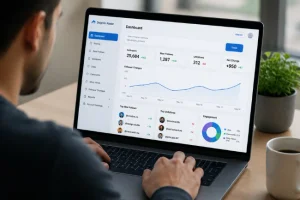
For teachers using game-based learning, having a central place to organize activities can make classroom preparation much easier. The Blooket dashboard serves as the starting point for accessing Blooket features, managing question sets, preparing games, and reviewing information from completed activities.
Blooket is an educational game platform designed around question-and-answer activities. Teachers can select an existing question set or create their own, choose a game mode, and host a live or asynchronous activity. The platform also provides reports that can help educators review student performance after a game.
Understanding how the dashboard fits into this process can help new users avoid common mistakes and get more value from the platform.
What Is the Blooket Dashboard?
The Blooket dashboard is the account area where users can access the platform’s main tools and activities.
For teachers, the dashboard is particularly useful because it connects several parts of the Blooket experience. Instead of treating each game as a separate activity, teachers can use their account to organize question sets, launch games, and review results.
Blooket currently provides separate account paths for students and teachers during signup, reflecting their different roles on the platform.
The dashboard is therefore more than a simple login page. It acts as a workspace for preparing and managing game-based learning activities.
How to Access the Blooket Dashboard
Getting started generally begins with signing into a Blooket account.
The official Blooket login page provides fields for a username or email address and password, along with a Google sign-in option and a password-recovery option.
Once an account is authenticated, users can access the features associated with their account type.
A basic access process looks like this:
- Open the official Blooket website.
- Select the login option.
- Enter the account credentials or use an available sign-in method.
- Continue to the account area.
- Select the feature needed for the current activity.
Teachers should make sure they are using the appropriate teacher account when they intend to create or host classroom activities.
What Can Teachers Do From the Dashboard?
The exact interface can change as Blooket develops, but the core workflow revolves around question sets, game sessions, and learning results.
Find Existing Question Sets
Teachers do not necessarily have to create every quiz from scratch. Blooket offers a library of question sets that can be used as starting points for activities.
When searching for a set, consider whether the questions match:
- The grade level
- The subject being taught
- The learning objective
- The difficulty of the material
- The amount of time available
A set that is technically related to a lesson may still be unsuitable if its questions are too advanced or too basic.
Create Custom Question Sets
Creating a custom set gives teachers more control over the content.
For example, a teacher covering fractions might build a set containing questions about equivalent fractions, comparing values, and basic operations. A science teacher could create questions covering vocabulary and concepts from a specific unit.
Custom sets can be especially useful when a standard Blooket library search does not provide material that closely matches the current lesson.
Choose a Game Mode
After selecting a question set, teachers can choose an available game mode for the activity.
Blooket’s basic workflow is built around three stages: getting a question set, choosing a game mode, and then playing and analyzing the results.
This matters because the same questions can feel very different depending on how students interact with them.
A competitive mode may work well as an energetic review activity, while another format may be more appropriate when the goal is individual practice.
Host a Live Game
Blooket can be used for live classroom activities in which students join a game hosted by the teacher.
Students generally use the game’s joining interface rather than accessing the teacher’s dashboard. The official play interface provides a field for entering a Game ID.
This distinction is important: the dashboard is primarily an account and management environment, while the game-joining page is where participating students enter an active session.
Blooket Dashboard and Student Access
Students have a different experience from teachers.
A student may need to join a game using information provided by the teacher rather than managing the activity themselves. Blooket’s official play interface currently presents a Game ID field for joining a game.
Depending on the activity, students may also encounter homework or asynchronous experiences. The official Blooket play environment includes separate homework-related game pages as well.
This means students should not assume that every Blooket activity requires access to the same dashboard tools available to teachers.
How Blooket Reports Help Teachers
One of the most useful parts of a game-based learning platform is what happens after the game ends.
Blooket states that its activities can provide detailed reports after games, allowing educators to identify knowledge gaps and use performance information to guide students.
A report can be more useful when it is interpreted as instructional feedback rather than simply a scoreboard.
For example, if many students miss questions related to the same concept, a teacher might revisit that concept before moving to a more advanced lesson.
Likewise, if most students answer a topic correctly, the teacher may decide that additional review is unnecessary.
Look Beyond the Overall Score
An overall result does not always explain why students performed a certain way.
A stronger review process considers patterns such as:
- Which concepts caused difficulty
- Whether errors were concentrated among several students
- Whether questions were misunderstood
- Whether the activity was too difficult
- Whether students improved after additional instruction
This turns a game session into another source of classroom feedback.
Blooket Assignments and Asynchronous Learning
Not every Blooket activity has to happen simultaneously in the classroom.
The platform supports asynchronous activities, which can allow students to complete assigned learning activities outside a traditional live game session. Blooket describes its platform as supporting both live and asynchronous gameplay.
This can be useful for:
- Homework review
- Independent practice
- Make-up work
- Additional repetition
- Pre-class preparation
- Review before an assessment
The appropriate use depends on the teacher’s instructional goals and the type of material being practiced.
Tips for Using the Blooket Dashboard Effectively
Simply knowing where the dashboard is does not automatically produce a better learning activity. The quality of the questions and how the activity is used matter just as much.
Start With the Learning Objective
Before choosing a game mode, determine what students should learn or practice.
For example, “review the causes of the American Revolution” is more useful as a planning objective than simply “play Blooket.”
Once the objective is clear, selecting or creating appropriate questions becomes easier.
Keep Questions Focused
A question set should have a clear relationship to the lesson.
Avoid combining unrelated topics simply because they can all be turned into multiple-choice questions. A focused set makes the resulting performance information easier to interpret.
Match the Game to the Classroom
Different activities call for different approaches.
If students are learning new material, a slower activity with opportunities for discussion may be more appropriate than an extremely competitive review.
For exam preparation, a teacher might use a question set that concentrates on concepts students have already studied.
Review the Results
Do not stop using the platform when the game ends.
The results can provide an opportunity to identify topics that deserve additional classroom attention. Blooket specifically highlights its reporting functionality as a way to identify knowledge gaps and support student progress.
Common Blooket Dashboard Problems
Users sometimes confuse account access problems with problems involving a specific game.
These are not always the same issue.
Unable to Log In
If you cannot access your account, check the credentials being used and the available password-recovery options. The official login page includes a “Forgot your password?” option.
Student Cannot Join a Game
A student who cannot enter a live activity should first confirm that the Game ID was entered correctly and that the teacher’s game is active.
The student joining interface specifically asks for a Game ID.
Wrong Account Type
Teachers and students have different roles on Blooket. If someone signs into an account intended for a different role, the available experience may not match what they expect.
Checking the account type can eliminate unnecessary troubleshooting.
Browser or Connection Issues
A game-based classroom activity depends on a stable internet connection and a functioning browser. If multiple students experience problems simultaneously, the issue may be related to the classroom network rather than an individual account.
Testing the platform before an important classroom session can reduce interruptions.
Is Blooket Free to Use?
Blooket promotes its platform as offering free educational games, while also providing account-based features and additional functionality.
Because platform features and subscription offerings can change, users should check the current official Blooket information when deciding whether a particular feature is available under their account.
For everyday classroom use, the important question is not simply whether Blooket is free. Teachers should consider whether the available features meet the needs of their specific lesson.
Blooket Dashboard vs. Game Join Page
These two pages can easily be confused by new users.
The dashboard or account area is associated with managing activities and accessing account features.
The game join page is designed for students or participants entering an existing game. The official Blooket play page currently displays a Game ID field and a login option.
Understanding this difference makes classroom setup much simpler.
A teacher generally prepares and hosts the activity, while students use the information supplied by the teacher to participate.
How to Build a Better Blooket Activity
A well-designed Blooket activity starts before anyone opens the game.
First, identify the concept students need to practice. Next, select an existing question set or create one that directly supports that goal.
Then choose a game format that fits the classroom environment.
After the activity, review the available performance information. If several students struggle with the same concept, use that information to decide what should happen next.
This creates a simple instructional cycle:
Teach → Practice → Play → Review → Reteach or Extend
The game is only one part of that process.
Frequently Asked Questions About the Blooket Dashboard
What is the Blooket dashboard used for?
The Blooket dashboard is an account workspace for accessing and managing Blooket activities. For teachers, this can include working with question sets, preparing games, hosting activities, and reviewing results.
How do I log in to Blooket?
Go to the official Blooket login page and enter your username or email address and password. Blooket also provides Google sign-in and password-recovery options.
Can students access the teacher dashboard?
Students and teachers have different account roles. Students generally participate in games through the game-joining experience rather than using the teacher’s management workflow.
How do students join a Blooket game?
Students can use Blooket’s official play interface and enter the Game ID provided for the activity.
Can teachers create their own Blooket questions?
Yes. Blooket allows teachers to create their own question sets in addition to using sets available through its library.
Does Blooket support homework?
Blooket supports asynchronous activities, and its play environment includes homework-related experiences.
Can teachers see student performance?
Blooket provides reports after games that can help educators review performance and identify knowledge gaps.
Is a Blooket account required to join every activity?
The exact participation process can depend on how the teacher has configured the activity. Students should follow the joining instructions provided for their specific game.
What should I do if my Blooket login does not work?
First verify the account credentials and try the password-recovery option if necessary. If the problem continues, consult Blooket’s current support resources rather than repeatedly creating new accounts.
Is Blooket suitable for different grade levels?
Blooket states that its gameplay is designed for learners from early elementary through high school and beyond. The suitability of a particular activity ultimately depends on the question content and how the teacher uses it.
Conclusion
The Blooket dashboard is best understood as the starting point for managing a broader game-based learning workflow. Teachers can use Blooket to find or create question sets, select game formats, host activities, and examine performance information afterward.
Students, meanwhile, generally interact with the platform through game or assignment experiences rather than the same management tools available to teachers.
The most effective approach is to treat Blooket as a teaching resource rather than simply a classroom game. When question quality, learning objectives, game selection, and post-game review all work together, the platform can become a practical way to add interactive practice to a lesson.